

ComfyUI Cloud MCP Server
The ComfyUI MCP Server connects AI assistants — including Claude Desktop, Claude Code, Cursor, and Amp — to Comfy Cloud via the Model Context Protocol (MCP). It lets AI agents generate images, search models/nodes/templates, and run full ComfyUI workflows on cloud GPUs, with no local GPU required.Quick Start
1. Get Your API Key
Visit https://platform.comfy.org/login and Log In
Please visit https://platform.comfy.org/login and log in with the corresponding account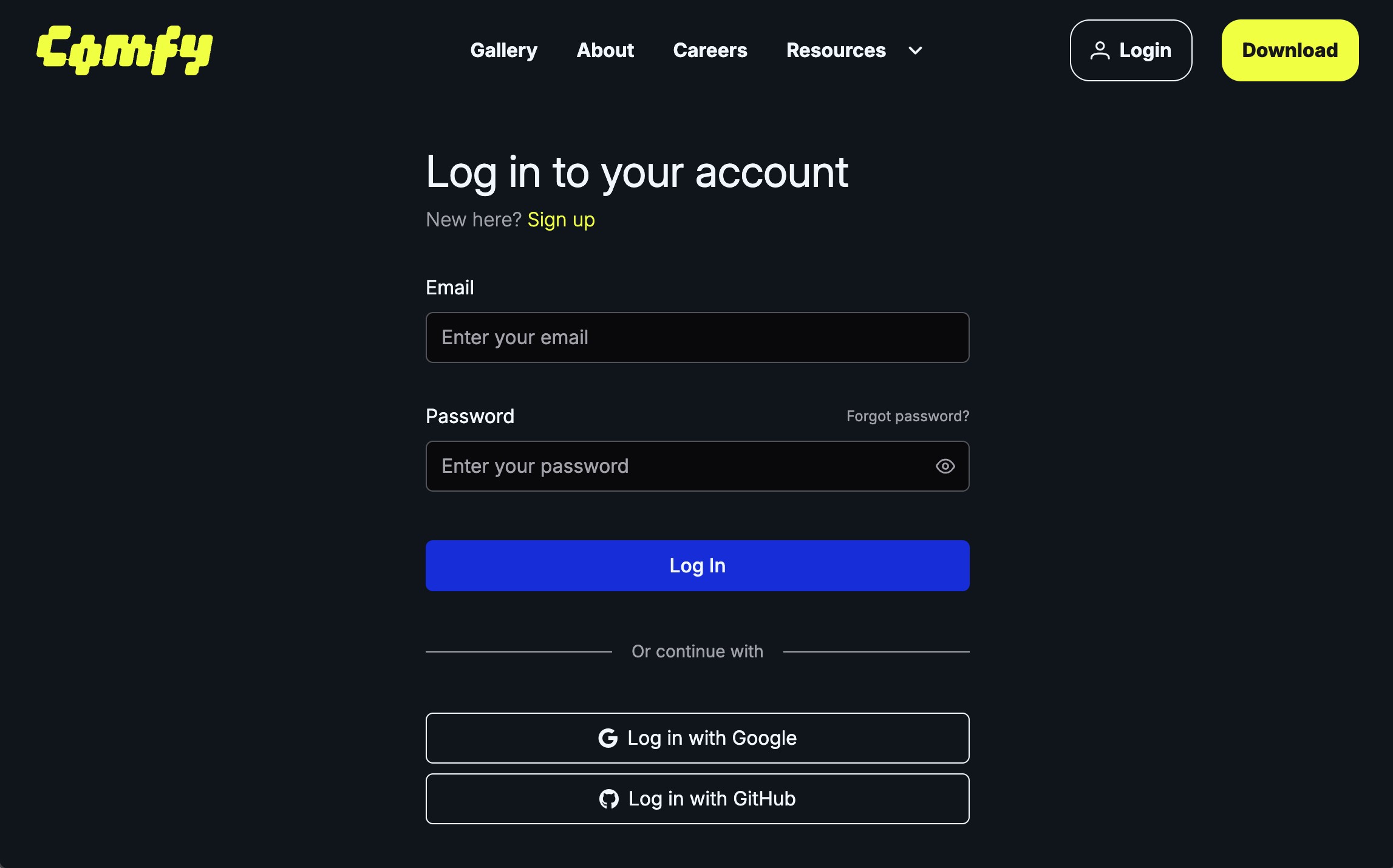
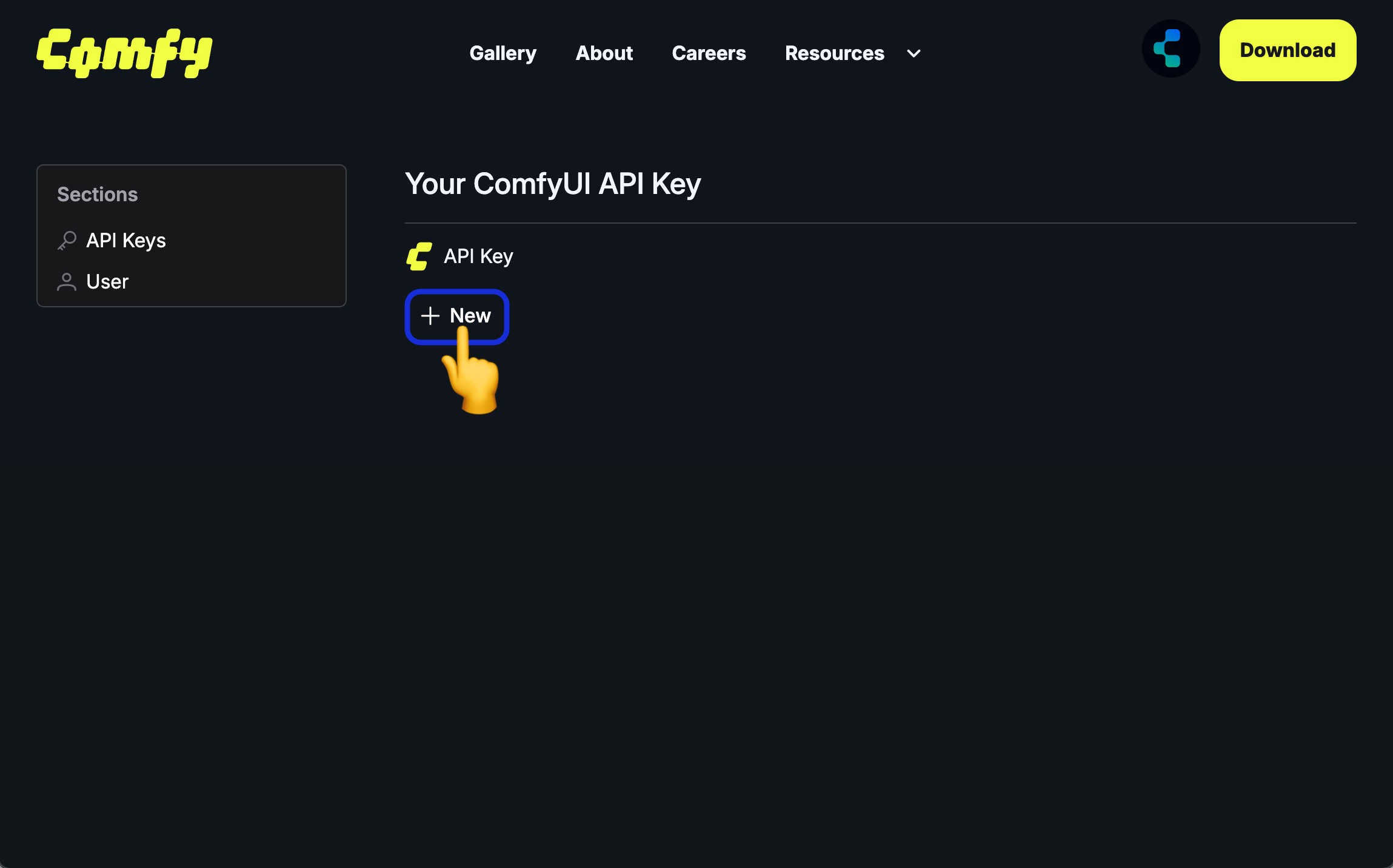
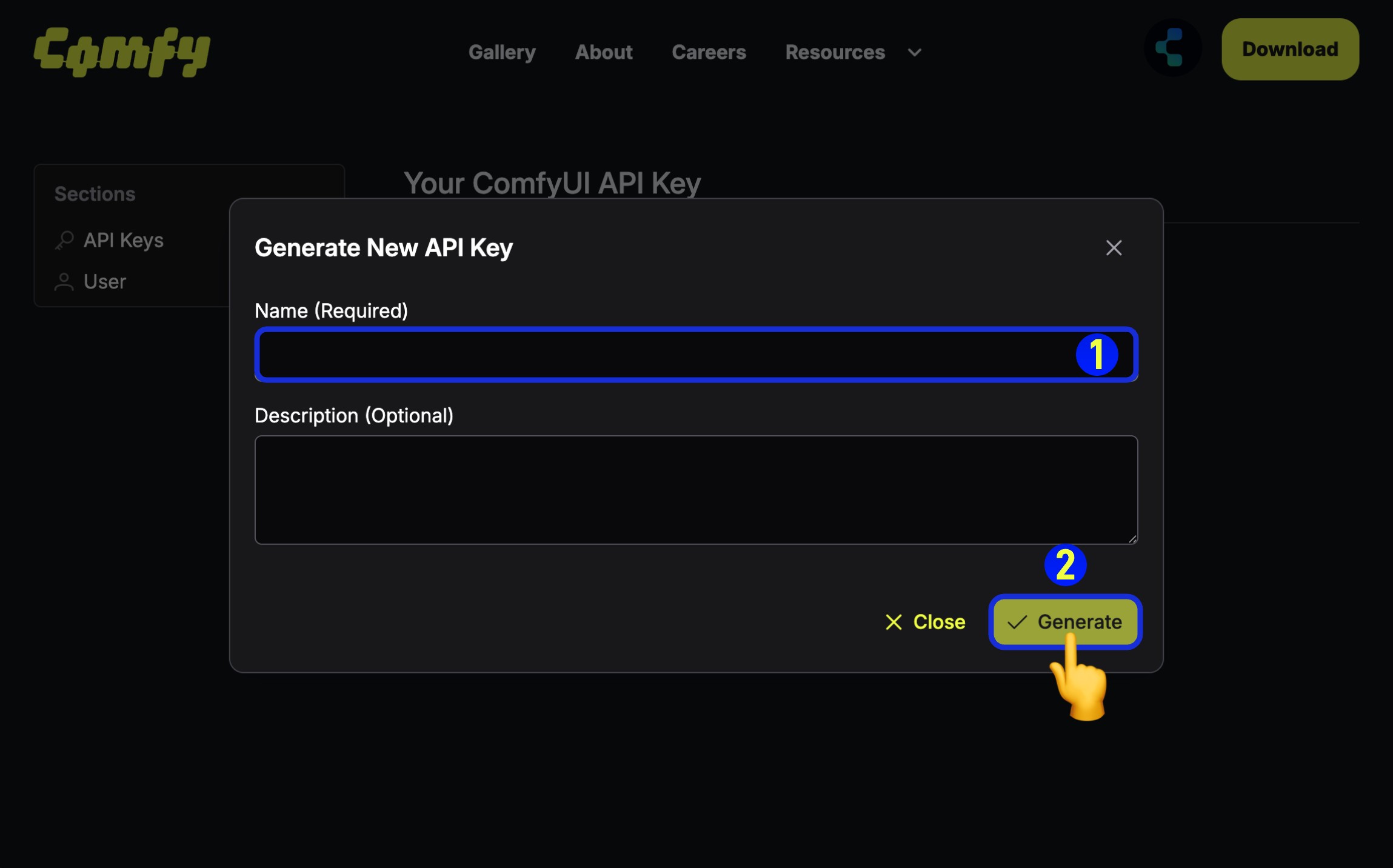
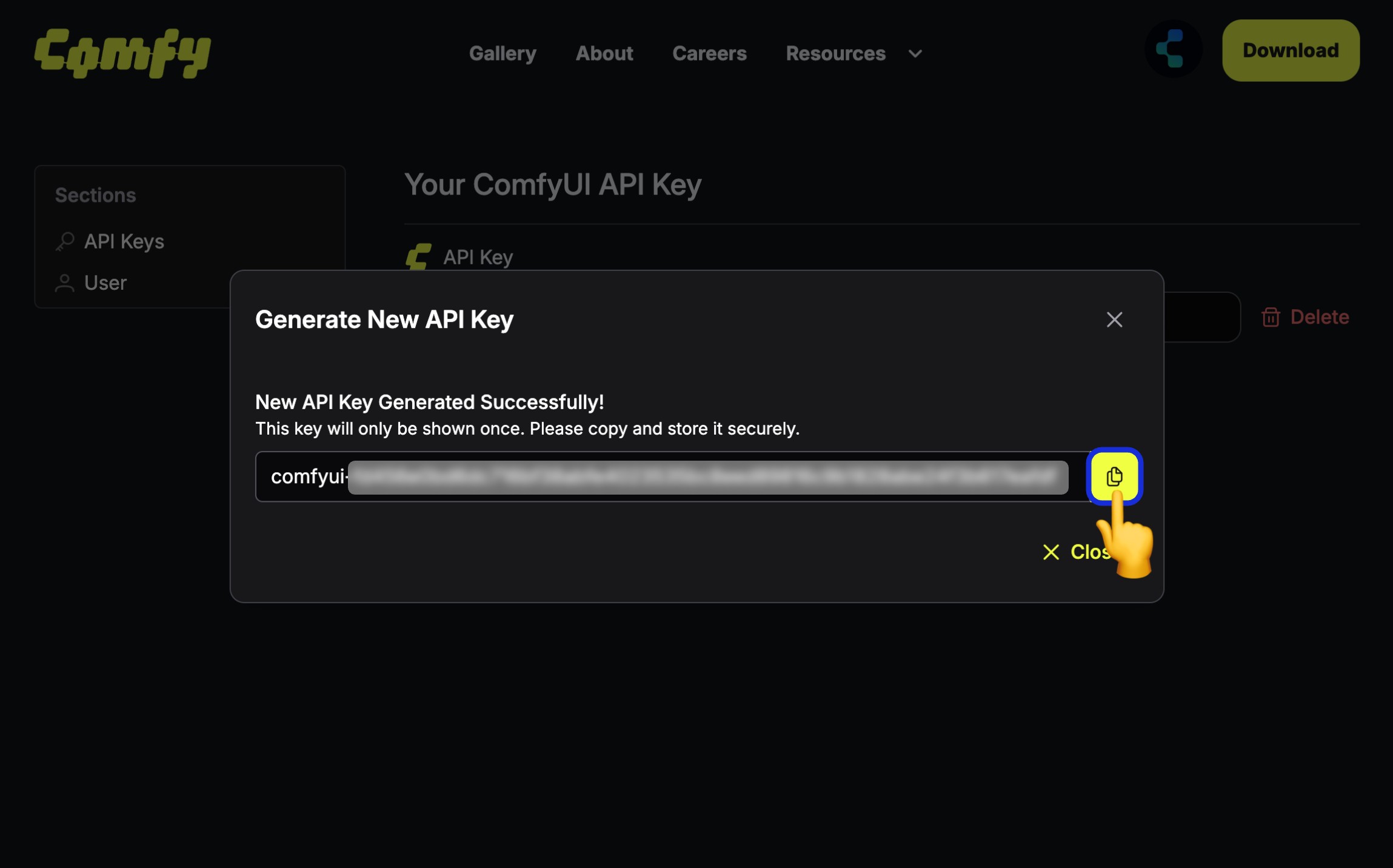
2. Connect Your Client
The ComfyUI MCP Server is hosted athttps://cloud.comfy.org/mcp. No local installation or Node.js required — just point your MCP client at the server URL with your API key.
- Claude Code
- Claude Desktop
- Cursor
After adding the server, restart your MCP client to pick up the new configuration.
Available Tools
Discovery
| Tool | Description |
|---|---|
search_templates | Search pre-built workflow templates from comfy.org by text, tag, media type, or model |
search_models | Search model catalog by text, type, base model, or source |
search_nodes | Search available nodes by text, category, or input/output types |
Execution
| Tool | Description |
|---|---|
submit_workflow | Submit a ComfyUI API-format workflow for execution on Comfy Cloud |
upload_file | Upload an input image or file for use in workflows (e.g. LoadImage) |
get_job_status | Poll execution status of a submitted workflow |
get_output | Retrieve output images, videos, or audio from a completed workflow |
use_previous_output | Chain workflows by reusing the output of one as input to another |
cancel_job | Cancel a pending or running job |
get_queue | Check how many jobs are running and pending |
Saved Workflows
| Tool | Description |
|---|---|
list_saved_workflows | Browse your saved workflows from Comfy Cloud |
get_saved_workflow | Inspect a saved workflow’s nodes, inputs, and configuration |
The server checks for a matching pre-built template before building a workflow from scratch, leading to better results and faster generation.
How It Works
cloud.comfy.org/mcp. The server translates MCP tool calls into workflow executions on Comfy Cloud GPUs — no local server or GPU required.
The AI agent already knows how to build ComfyUI API-format workflow JSONs — just describe what you want and it will construct the workflow, submit it, and return the results.
Example Prompts
After installing, try these prompts in your AI assistant:Output Handling
- Images are displayed inline (Claude Code) or in the artifact side panel (Claude Desktop)
- Files are saved to
~/Downloads/ComfyUI/with descriptive filenames (e.g.comfy_cat-astronaut-in-space.png) - Duplicate filenames are automatically incremented (
_1,_2, etc.) - Pass
auto_open: truein theget_outputtool call to open files in your default application automatically - Inline image previews are resized to 1024px (JPEG); full-resolution files are always saved to disk
Known Limitations
Workflows- Cannot run saved workflows by ID. You can browse and inspect saved workflows (
list_saved_workflows,get_saved_workflow), but not execute them directly. Saved workflows use the ComfyUI graph format, which requires conversion to API format. The AI agent must reconstruct the workflow from scratch. - Generated assets have no workflow metadata. Images created via the MCP server don’t include workflow JSON in their metadata, so they won’t show the workflow when opened in ComfyUI.
- Workflow accuracy depends on the AI. The agent constructs ComfyUI workflows from natural language. Complex multi-node workflows or unusual node configurations may require iteration.
- Upload size limits may apply depending on your MCP client.
- Image previews are resized. Inline previews are limited to 1024px (JPEG). Full-resolution files are saved to disk.
- API key only. Authentication requires a Comfy Cloud API key passed via the
X-API-Keyheader. Browser-based OAuth is not yet available.
- Claude Desktop — Generated images appear in the artifact side panel via HTML, not as native image artifacts.
- Amp — Status messages during generation may not be surfaced directly. The
auto_openfeature may not trigger in all contexts.
Troubleshooting
MCP server not showing up
Restart your MCP client (close and reopen Claude Code, Claude Desktop, or Cursor). MCP servers are loaded at startup. Double-check that the server URL is exactlyhttps://cloud.comfy.org/mcp in your config.
API key errors
Verify your API key is valid at platform.comfy.org/profile/api-keys. Make sure the key is passed in theX-API-Key header (not as a Bearer token). Generate a new key if needed and update your client config.
Connection errors
If the MCP client can’t reach the server, check that:- You have an active internet connection
- Your firewall or proxy isn’t blocking
cloud.comfy.org - You have an active Comfy Cloud subscription